
BDC deployment error
When changing your identifier within your BDC model and deploying with Visual Studio afterwards, you might bump into an error looking something like the following.
Error occurred in deployment step 'Add Solution': Model file 'SendToMailModelSendToMailModel.bdcm' has the following External Content Type activation errors:
TypeDescriptor with Name 'ID' (found in Parameter with Name 'returnParameter', Method with Name 'ReadList', Entity (External Content Type) with Name 'Contact' and Version '1.0.0.30' in Namespace 'SendToEmail.SendToMailModel') refers to an Identifier with Name 'ID' of Type 'System.Guid' which is supposed to exist on Entity with Name 'Contact' in Namespace SendToEmail.SendToMailModel'. This Identifier cannot be found.
I tried a lot of stuff trying to resolve the error
– investigating the model over and over again
– retracting the old model using Visual Studio
– uninstalling the dll from the GAC
– IIS reset, Timer Reset
– restarting VS
But unfortunately none of the above worked. Then I took a look at the BDC service application (Central Administration > Application Management > Manage service applications > Then click your BDC service), the “View External Content Types” page will be shown. What I first noticed was that my external content type wasn’t there, which I thought was a bit strange. Then I noticed the dropdown at the top of the page, which contains the different views of the page, I’ve never noticed it before and therefore never used it before.
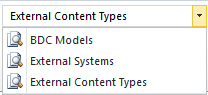
BDC page views
After selecting “External systems” from the options in the dropdown, the view changed and I noticed my BDC model.
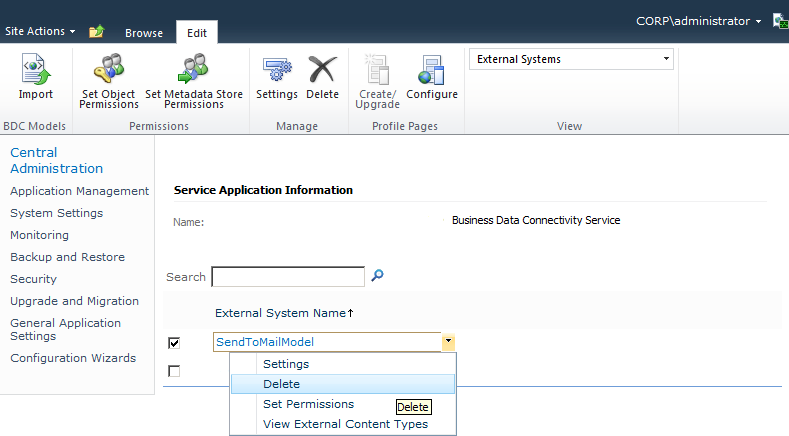
External systems view
After changing to the “BDC Models” view of the page I also noticed my model was listed over there.
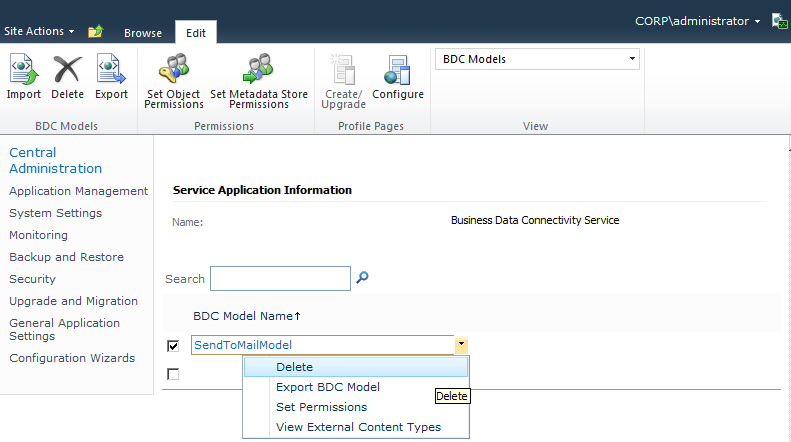
BDC models view
After deleting the model from both these pages I could deploy it again from Visual Studio.
Thank you much!
Hi, Thanks for this!!! This has saved me lots of time… didn’t notice the dropdown combo at all!
Cheers,
Mario
Thanks alot I didn’t expect that…
You, my friend, are brilliant. Spent several hours on this and used a bunch of powershell commands that hadnt worked. This did the trick. Nice one.